

Introducing Show|Ready Mobile
The Show|Ready Mobile app helps with your musical production rehearsals as you prepare for opening night. Cast members love the app because it’s a musical rehearsal tool that fits in your pocket, so you can practice anywhere! It lets you listen to any song in your show, isolate your part for practice, and follow along with the score. Your director can also customize the show by changing the tempo, key, and more.
For more information on how to customize your show in Show|Ready, we recommend having your director read the desktop user manual:
- (Editor Access) How to Use Show|Ready
Menu
1. Managing Your Show|Ready License
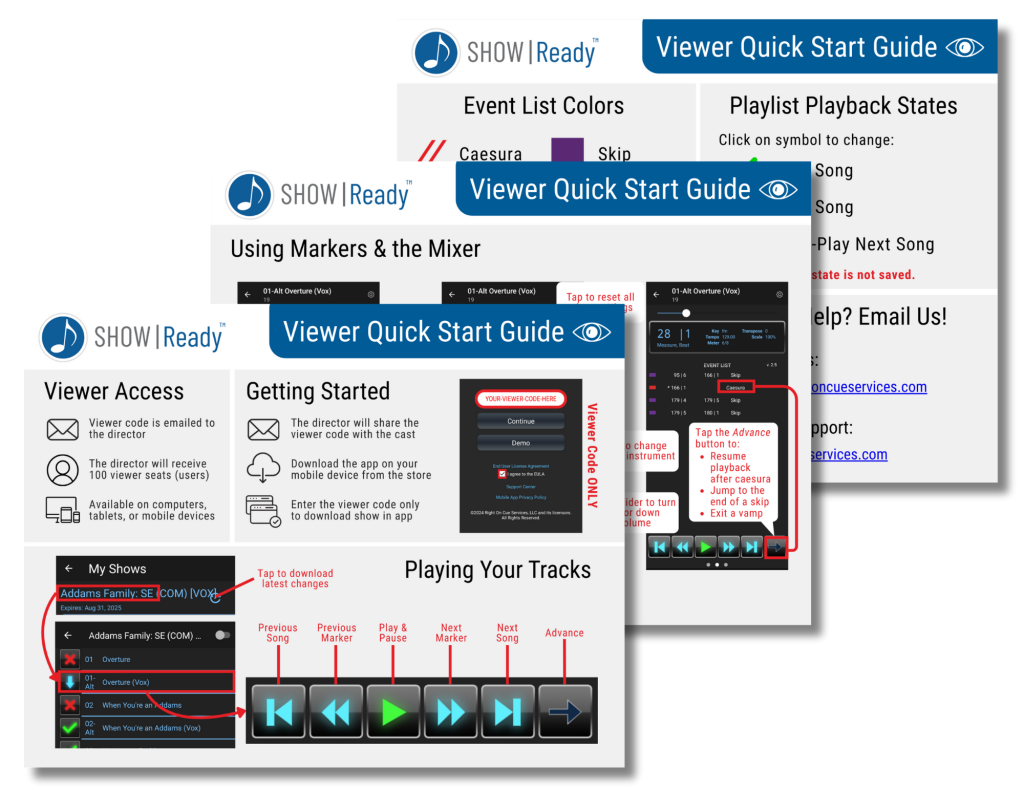
We created a simple reference guide to help you get started. Click the image below to open the quick start guide:
Cast Members
Viewer Guide (Mobile)
Your director or a member of your production team should share a viewer code with you. They will receive the following email from licensing@rightoncueservices.com with your access codes.
Here is what the email will look like:
Licensing Email
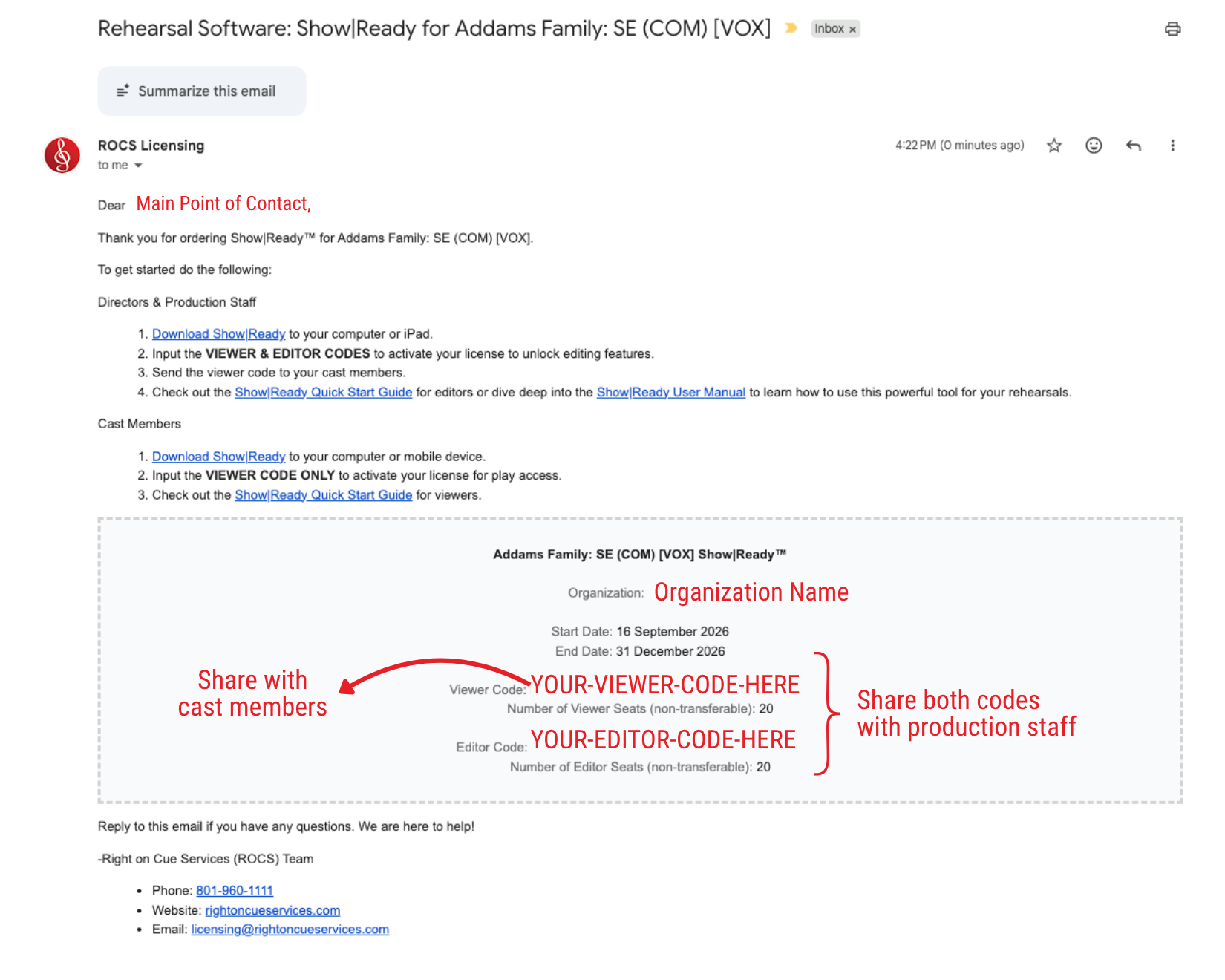
Your director should send you the Viewer Code ONLY! If they sent you the Editor Code, you can ignore it because you won’t need it.
The viewer code will be a string of six random words. For example, your viewer code could look like the following:
- DUCKS-ABYSS-CANDY-FIBBED-MOOT-AZURE (not an actual viewer code)
Enter these codes in the Show|Ready software to access your show. When your codes expire, you will no longer have access to your show in the app.
Downloading Show|Ready on Mobile
We recommend downloading the latest version of Show|Ready Mobile. To download the iOS or Android app, visit the downloads page for the latest version.
There are currently two Show|Ready apps in the Apple App Store:
- Show|Ready = Legacy (old)
- This one has editing capabilities only on iPad.
- Show|Ready Mobile = Beta (new)
- This one doesn’t currently have editing capabilities, but we’ll add those features soon.

Activating Your Show|Ready License
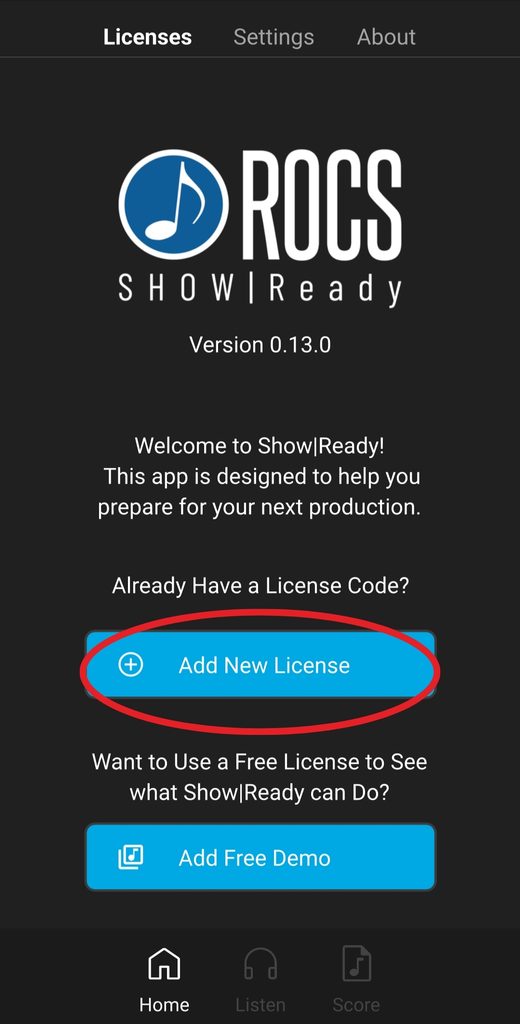
The first time you launch Show|Ready on iOS or Android, you will see the welcome page. This page shows the software version and lets you enter a new license or try the free demo.
Welcome
Enter Viewer Code
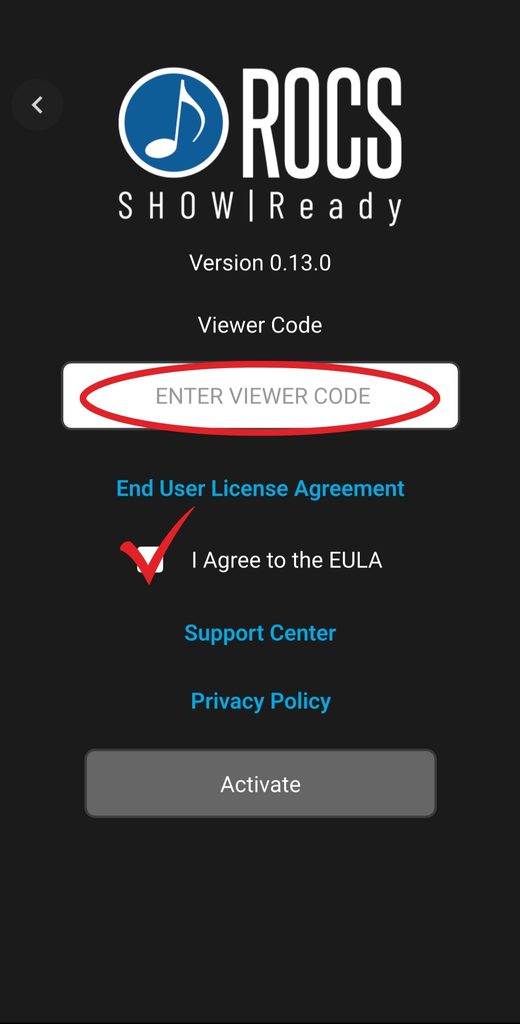
Accept EULA
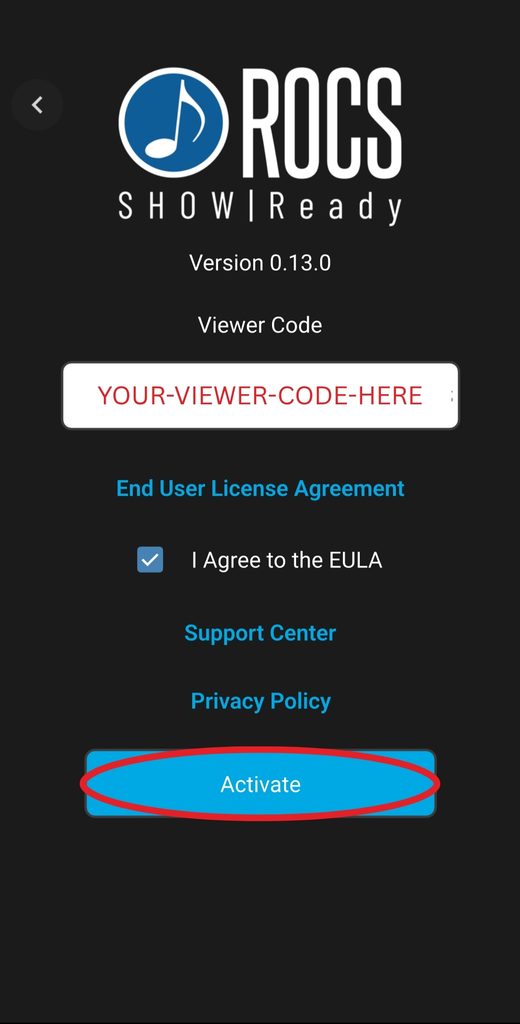
To download your shows, do the following:
- Tap Add New License.
- Enter your viewer code. You can use spaces for the dashes.
- Tap End User License Agreement (EULA) to review it.
- Select the checkbox next to I agree to accept the terms and conditions in the EULA.
- Tap Activate.
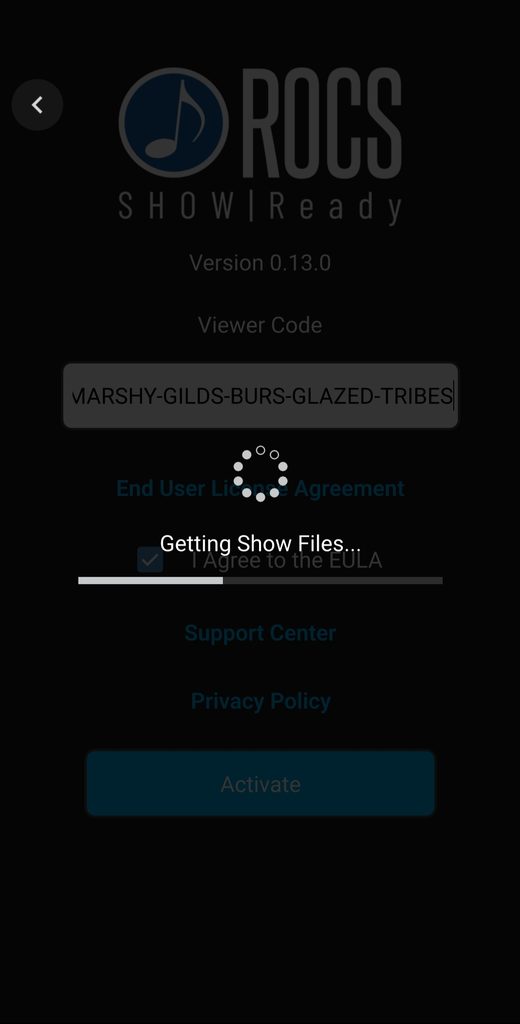
- Once you have entered your codes, your show will download into Show|Ready.
Download Show
As we continue to develop and enhance Show|Ready features, you may encounter some limitations or bugs. We value your feedback and encourage you to submit feature requests or report any issues you encounter. You can submit your requests here:
We’ll roll out regular updates with new features and bug fixes. For more info, visit our support page:
2. Navigating Show|Ready
This section controls playback of the selected song and lets you navigate your show easily. While similar to a traditional audio player, some features may differ.
Transport Buttons
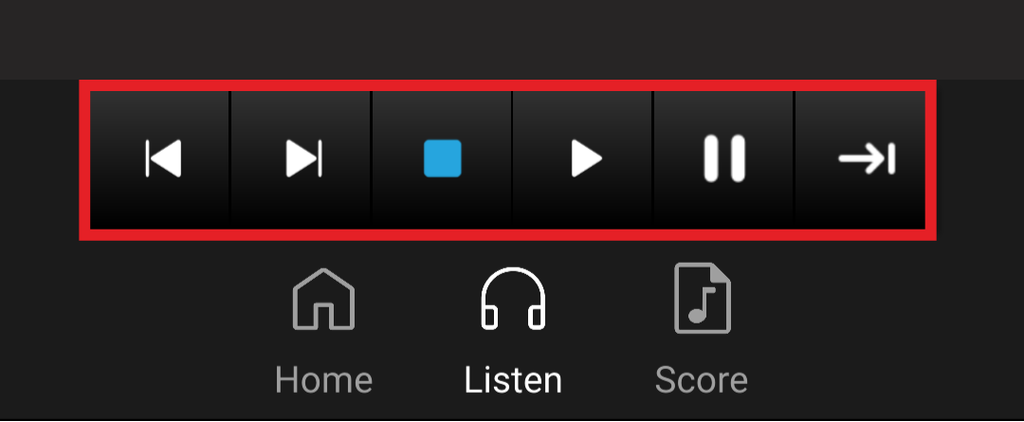
Here is a list of all of the Transport buttons and what they do:
- Previous Song – go to the previous song in the Playlist.
- Next Song – go to the next song in the Playlist.
- Stop – stop the music and return to the beginning of the timeline.
- Play – play / resume the music in the timeline.
- Pause – pause the music at that point in the timeline.
- | Advance – a multi-use button to resume playback for caesura, skips, and vamps.
Event Labels and Advance Button
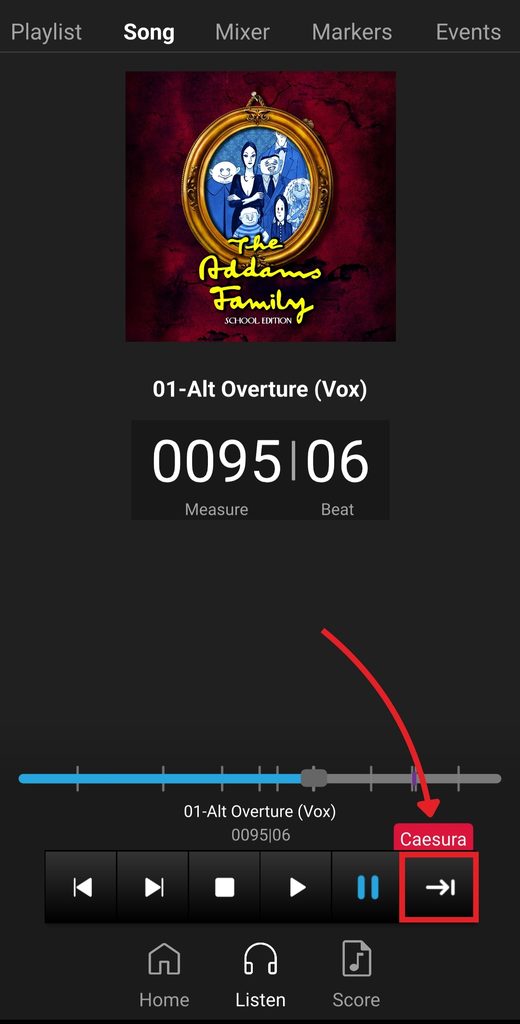
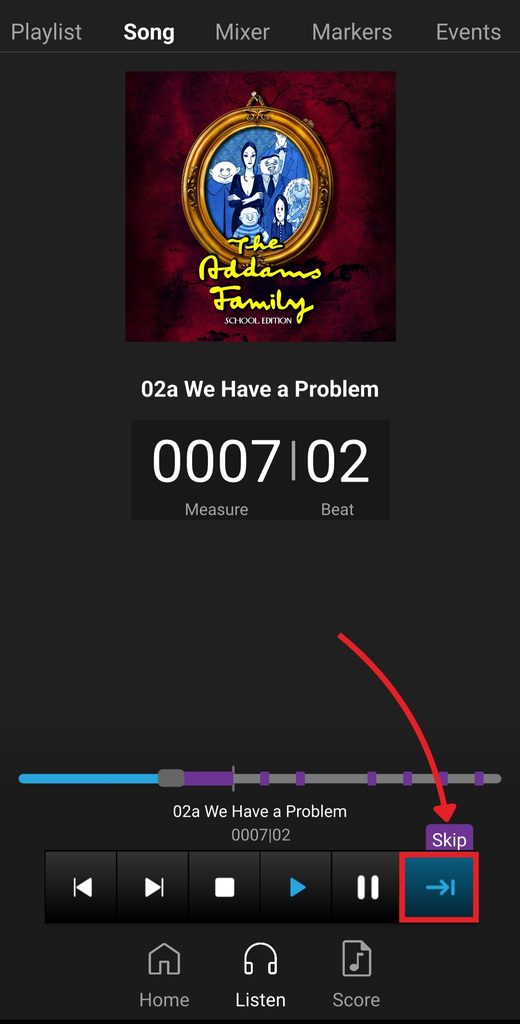
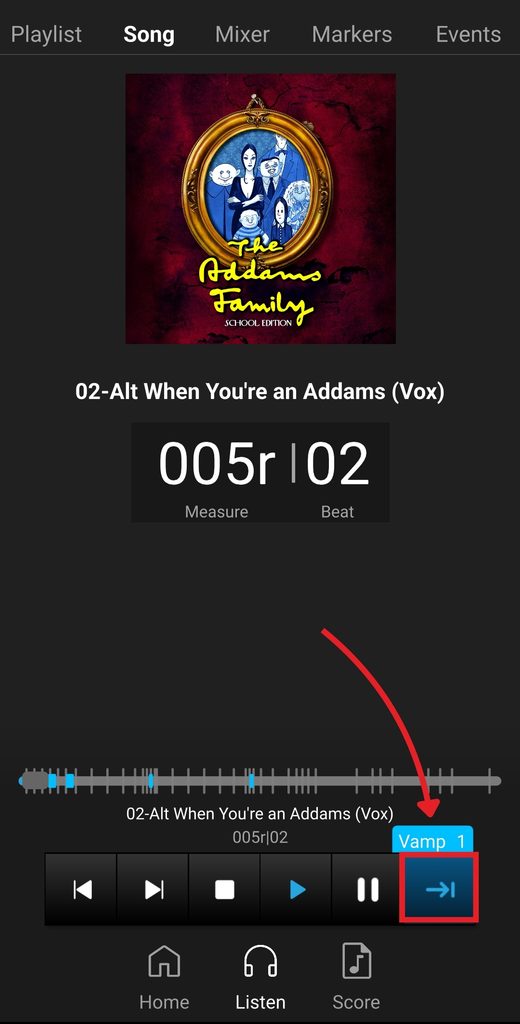
When you are in a caesura, skip, or vamp event, a pop-up label will appear with the event name, and the Advance button will be highlighted.
Tap the Advance button in the following situations:
- 1. Resume playback after a Caesura. If you don’t tap Advance, the music will be paused indefinitely.
- 2. (Optional) Jump to the end of a Skip. If you don’t tap Advance, the music will continue to play as usual.
- 3. Exit a Vamp. If you don’t tap Advance, the music will loop indefinitely.
During rehearsal, cast members will spend most of their time on Show|Ready using the Listen Tab. This tab includes the following:
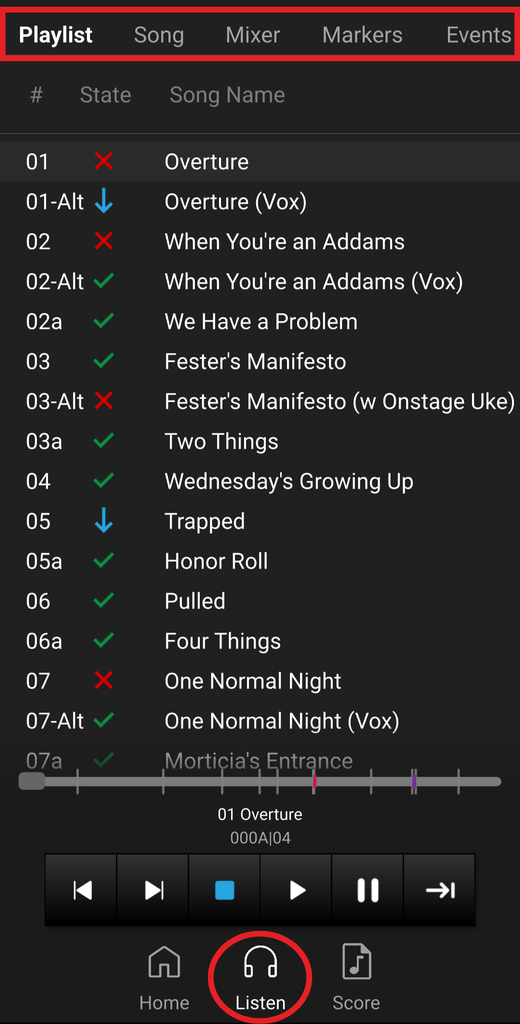
This section displays each song’s name and number. It also shows each song’s playback state. By default, all song names in Show|Ready match exactly as listed in the Score, except for some descriptions and/or possible punctuation differences due to character limits in file names.
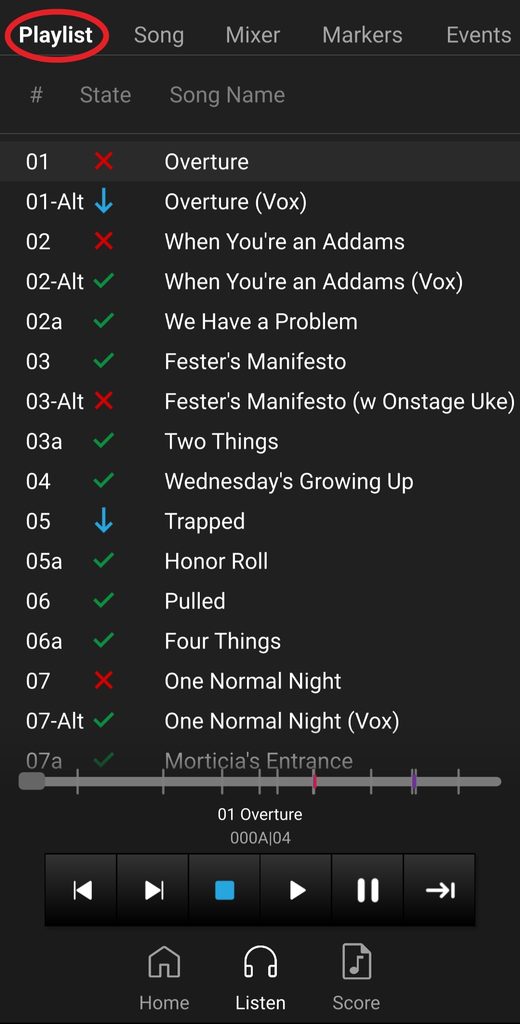
The Selected Song indicates it is loaded for playback, represented as a highlighted gray band. Between the song number and song name, there are symbols that show the Playback State. These symbols determine which song loads next and whether playback continues automatically.
- To change the playback state, tap on the symbol in the Song List.
Playback State
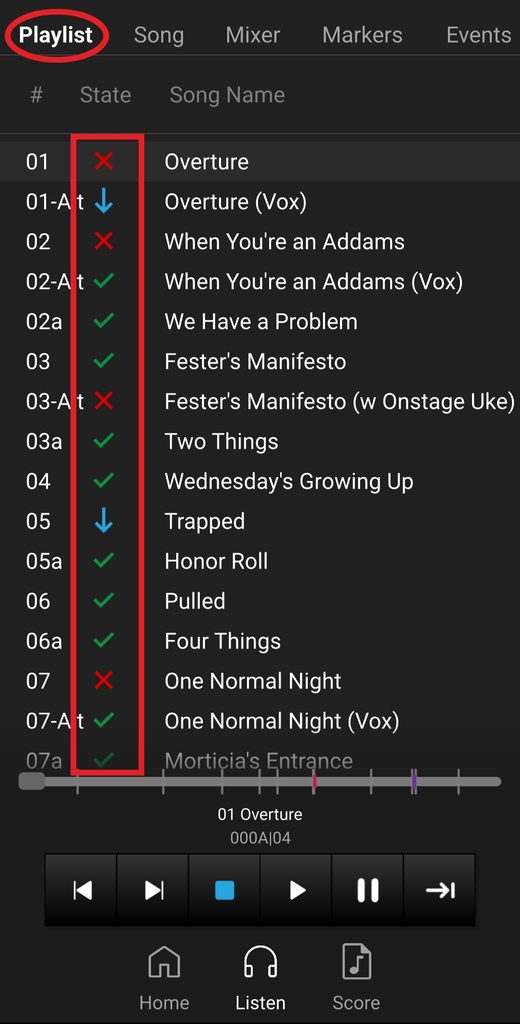
Here is a list of the Playback State Symbols and what they do:
- – Automatically plays the next song (segue/attacca) at the end of the current song.
- – The song is skipped.
- – Queues the next song, and you need to trigger the song to play.
NOTE: Please be aware that these changes will not be saved on the mobile app. To retain the playback, contact whoever has editor access (director or production staff) and ask them to save the playback state. This automatically saves playback states for all cast members on the same license.
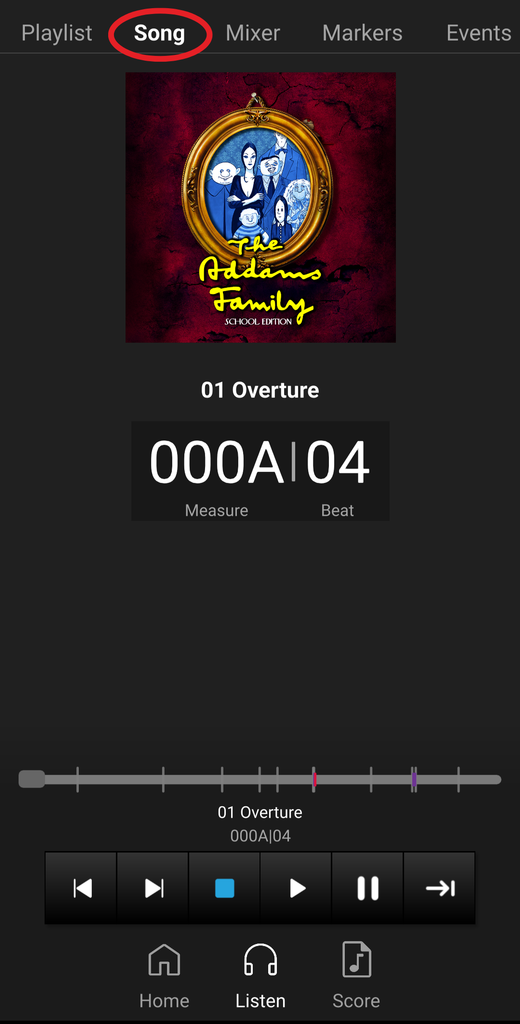
This section contains information about the selected song. It includes the album art, song number, song name, and measure | beat. By default, all pre-programmed events in Show|Ready match exactly as listed in the Score.
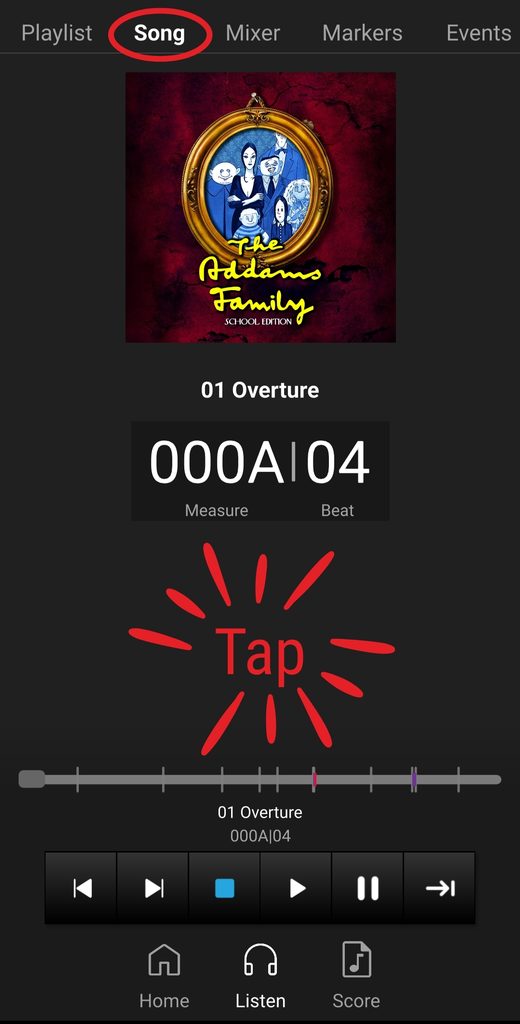
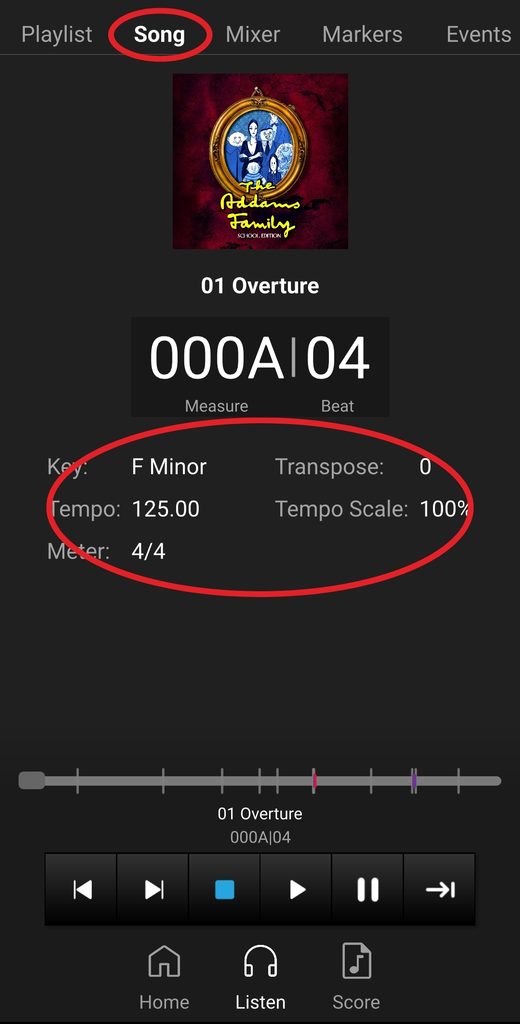
To see the key, transposition, tempo, tempo scale, and meter, tap to view more info.
This section supports the rehearsal process by letting cast members mix their parts. The mixer contains the instruments (piano, bass, drum kit), character/ensemble parts (represented by virtual instruments), and temporary modifications for the current song.
NOTE: Show|Ready doesn’t have traditional guide vocals, so the tracks don’t include singing voices. However, the mixer represents guide vocals as virtual instruments (MIDI), allowing cast members to practice their individual parts. Also, the mixer feature is NOT available in the performance software, Stage|Tracks.
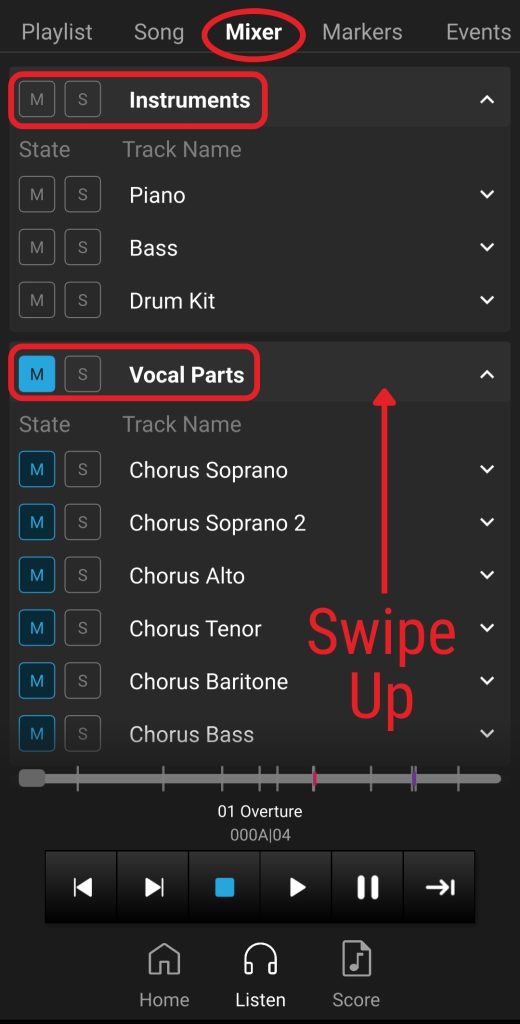
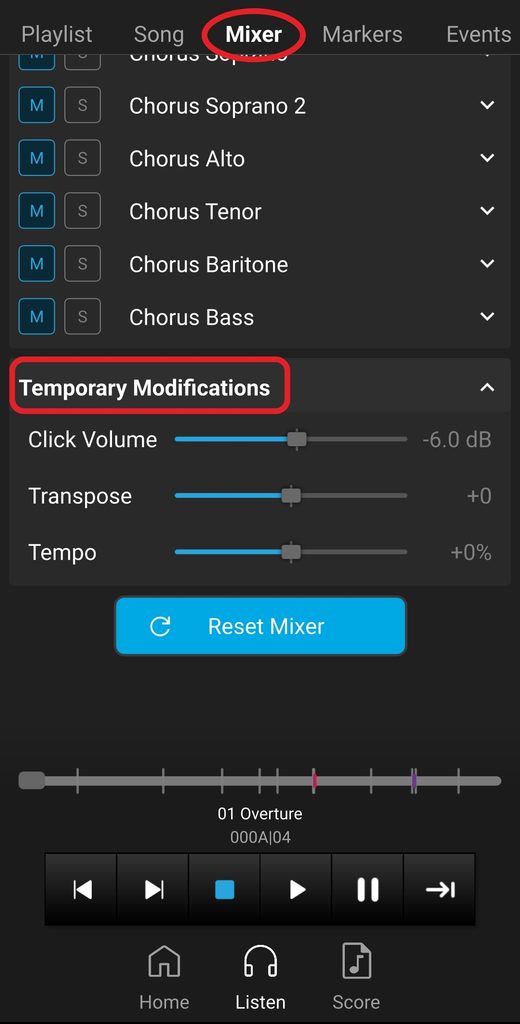
In the mixer, you will see three groups:
- Instruments – piano, bass, drum kit
- Vocal Parts – the virtual instrument (MIDI) is represented as a guide vocal
- Temporary Modifications – temporarily change the click volume, transposition, and tempo.
- NOTE: Although you can adjust the click track volume, you can’t mute it due to licensing restrictions. The click track ensures that Show|Ready is used only for rehearsal. Hence, the click track must remain enabled.
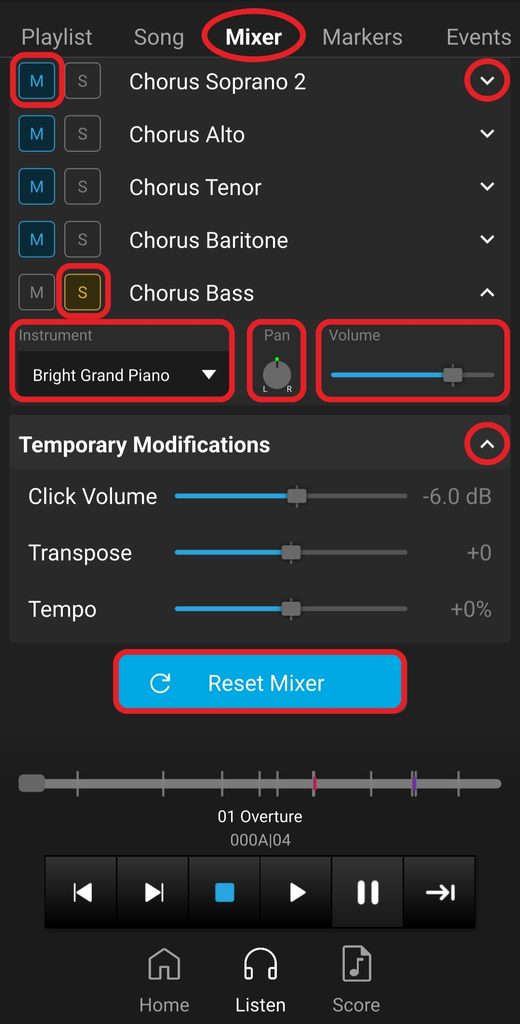
Here is a list of all of the mixer buttons and what they do:
- ^ /⌄ – expand/collapse the group
- M – mutes/unmutes the selected part
- S – solos/unsolos the selected part
- Instrument – changes the selected part’s virtual instrument (MIDI)
- Pan – slides the selected part to the left or right speakers
- Volume – changes the selected part’s volume
- Reset Mixer – resets all parts to defaults
NOTE: Please be aware that these changes will not be saved and are NOT applied to the performance software, Stage|Tracks.
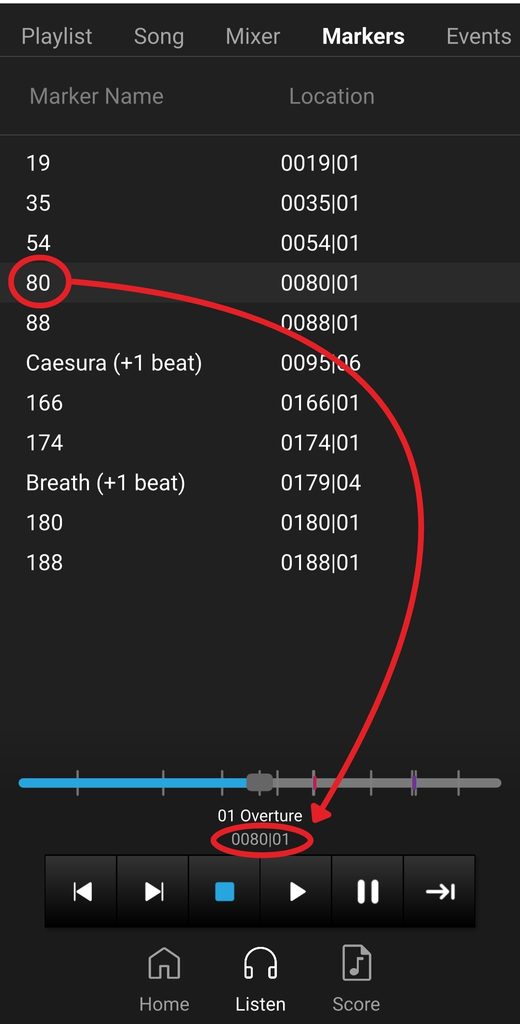
This section displays comments for the selected song. Each marker includes its name and bar | beat location. By default, all markers in Show|Ready match exactly as listed in the Score.
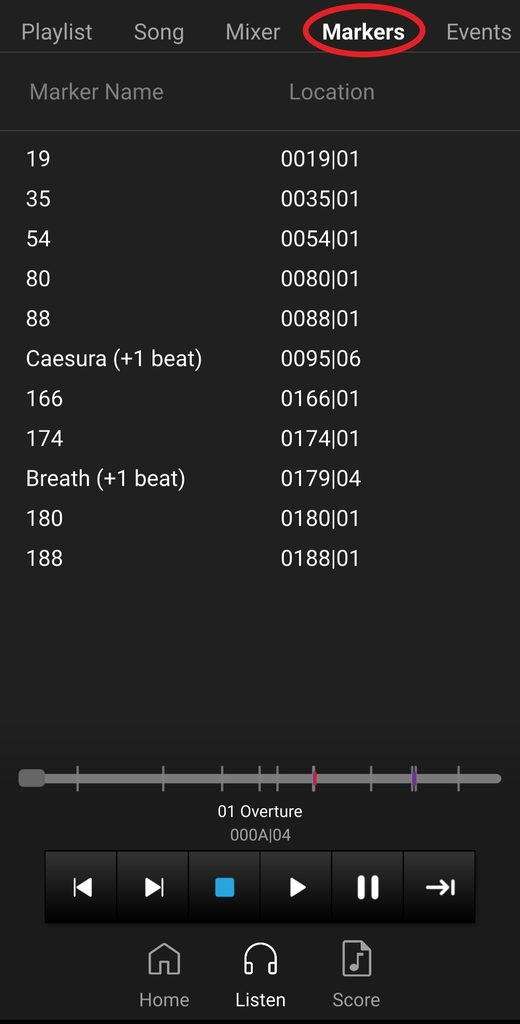
The marker list allows you to jump to that location in the song.
- To automatically move to a specific marker location, tap a specific marker in the list.
This section displays a list of events in the selected song. Each item has several pieces of data, including the in bar, out bar, event type, value (if applicable), and event color in the timeline. By default, all pre-programmed events in Show|Ready match exactly as written in the Score.
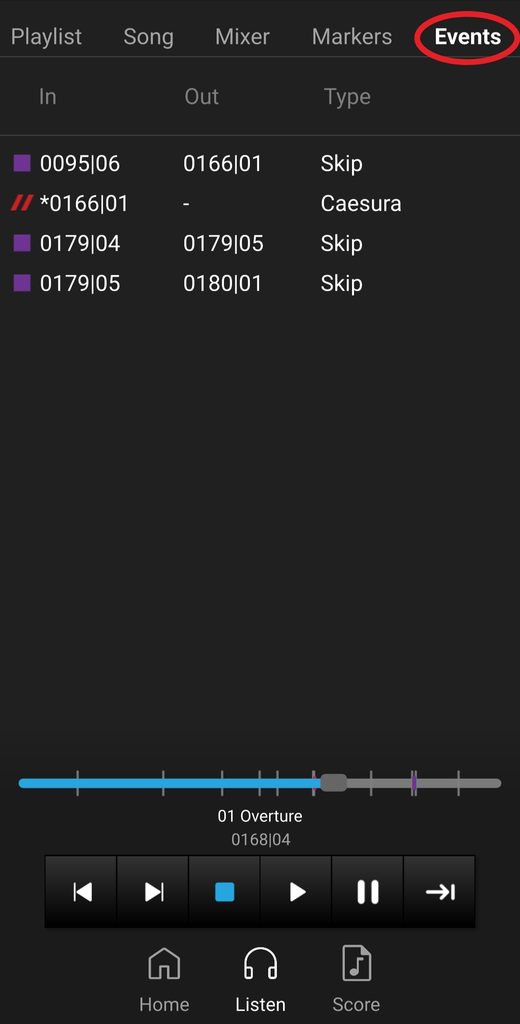
Each song will have different events based on pre-programmed events or changes made by your director or production staff with editor access.
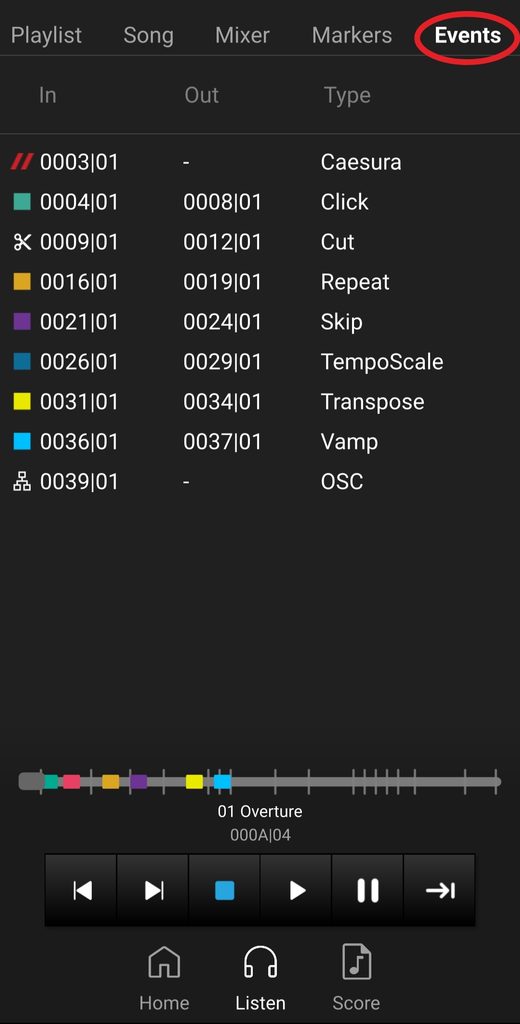
Here is a list of events and what they do:
- Caesura – adds a pause in a song, perhaps for additional dialogue time or another break in the action
- Represented in the timeline as a thin red line
- Click – changes the resolution (subdivision) of the click track to help you follow the beat
- Represented in the timeline as a dark green band
- Cut – removes a section of music from playback
- Represented in the timeline as a red band
- Marker – shows locations in the score or may include cue notes for the production staff or other comments
- Represented in Markers
- Repeat – plays a section a fixed number of times, then advances automatically
- Represented in the timeline as an orange band.
- Skip – allows you to execute an instant skip to the end of a section in a song when desired
- Represented in the timeline as a purple band
- Tempo – allows you to scale the speed of a section of a song
- Represented in Song
- Transpose – changes the key in which the song plays
- Represented in the timeline as a yellow band
- Vamp – allows a section to be played an indefinite number of times according to the score, to accommodate any extra time needed for stage business
- Represented in the timeline as a light blue band
- OSC – OSC stands for Open Sound Control; it’s disabled in Show|Ready but can be used in the performance tool, Stage|Tracks to integrate with QLab
- Represented in the timeline as a network icon
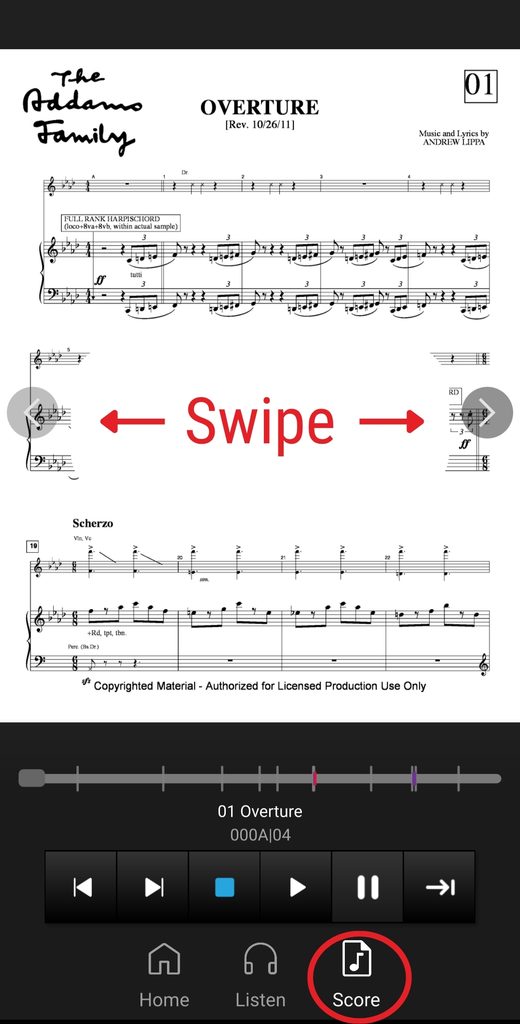
Below is the score view of the selected song. You can access it by taping on the Score tab at the bottom of the page. By default, all events in Show|Ready match exactly as listed in the score.
- To scroll through the score, swipe left or right.
- If you tap Play in the Transport, the score will automatically turn pages as you play.
The Home tab lets you add, update, or remove licenses. You can also change universal settings or see which app version you’re using. This tab includes the following:
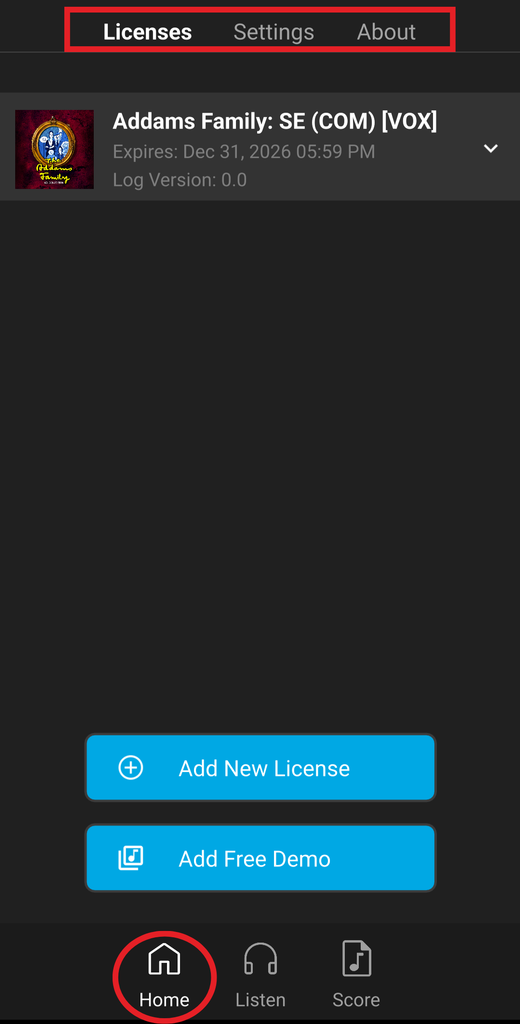
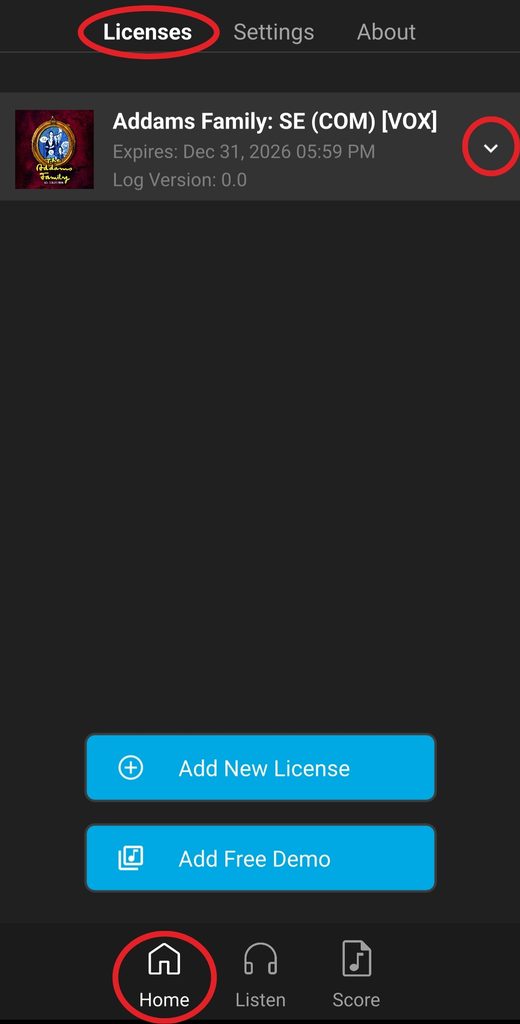
In Licenses, you can update, add, or remove a license. This page includes the following:
- Download Latest Log
- Remove License
- Add New License
- Add Free Demo
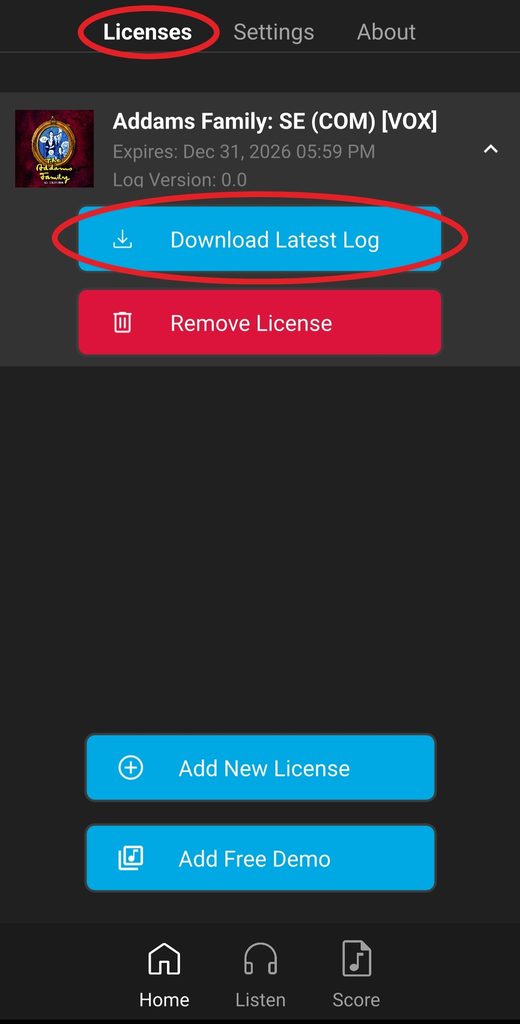
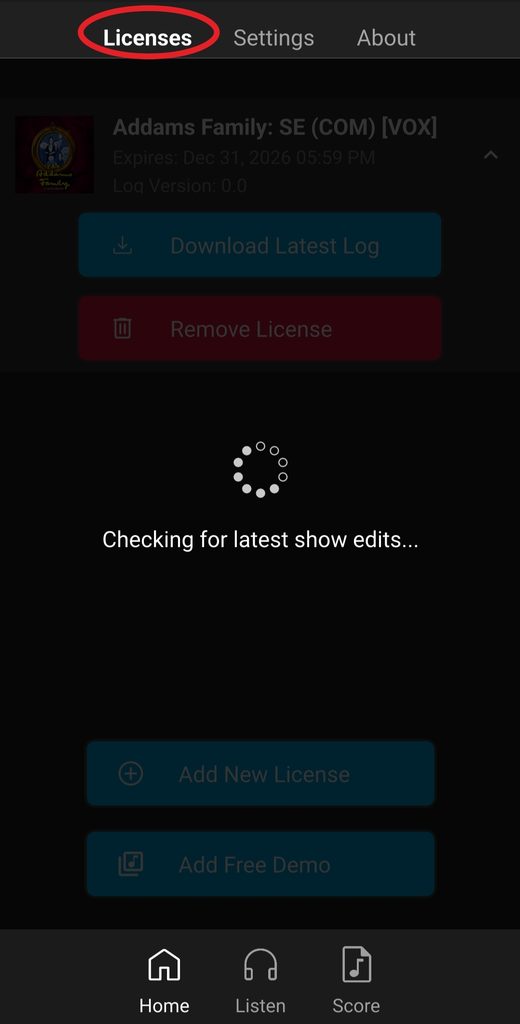
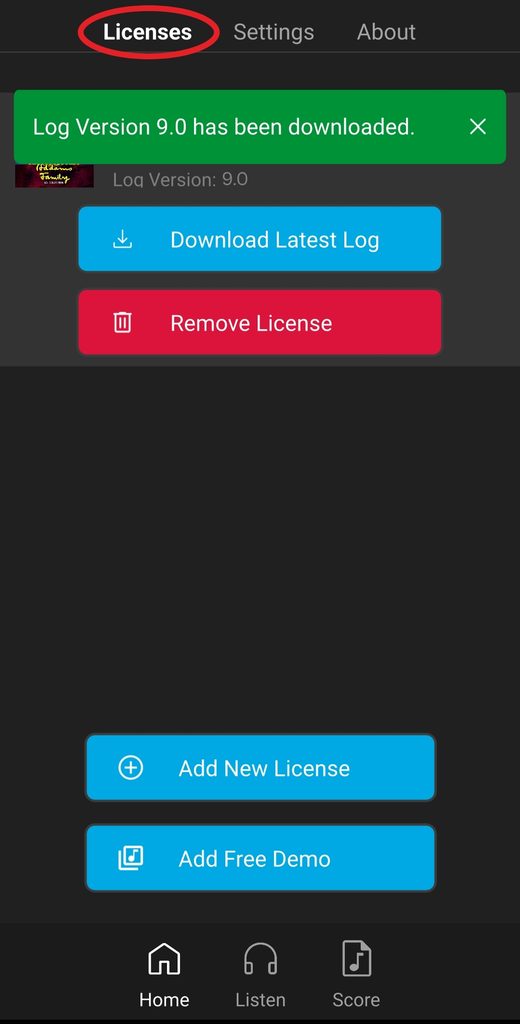
By default, when you open the Show|Ready app, it automatically downloads the latest event log. However, if your director or production team edits Show|Ready and shares the latest event log during rehearsal, you will need to download the latest event log manually.
- To download the latest event log, tap Download Latest Log.
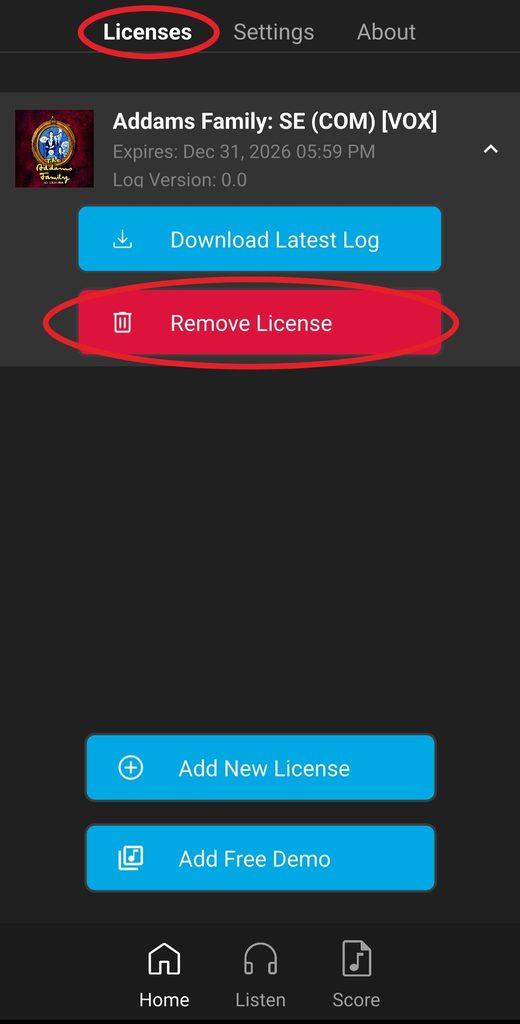
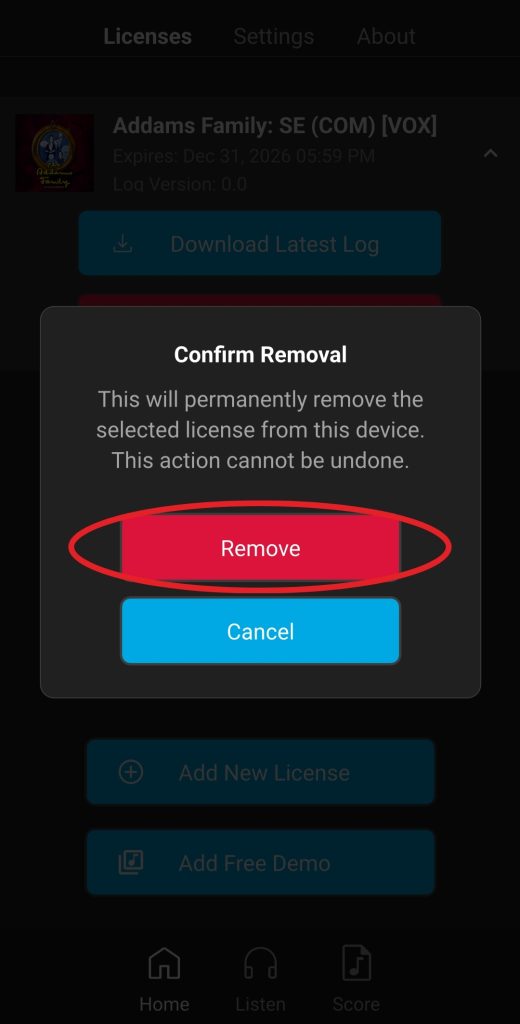
- To remove a license, tap Remove License. You must confirm the license removal before it’s deleted.
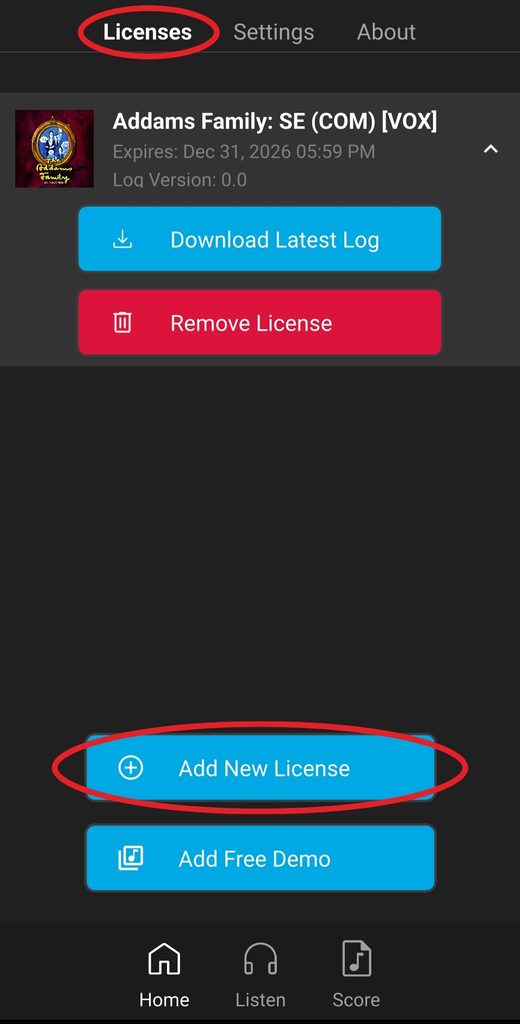
Sometimes, you may be involved in two different productions at the same time, so you need to switch between shows in Show|Ready.
To add another show to Show|Ready, you will do the following:
- Go to the Home tab.
- Tap the Add New License button.
- In the pop-up window, tap Add License.
- Enter your viewer code. You can use spaces for the dashes.
- Tap End User License Agreement (EULA) to review it.
- Select the checkbox next to I agree to accept the terms and conditions in the EULA.
In Settings, you can update the universal settings for all your shows in Show|Ready. This page includes the following:
- Auto-update Event Log on launch — If enabled, automatically download the latest event log from the server each time the app is opened. You want to turn off this setting if you’re working offline.
- Enabled by default
- Consolidate pitches — If enabled, when multiple characters sing the same pitch, it combines the duplicate notes to prevent them from sounding unnaturally loud.
- Disabled by default
- Apply Mixer changes across show — If enabled, changes to a specific vocal part (instrument, volume, pan) is applied to every song. Mute and solo settings remain specific to each song.
- Enabled by default
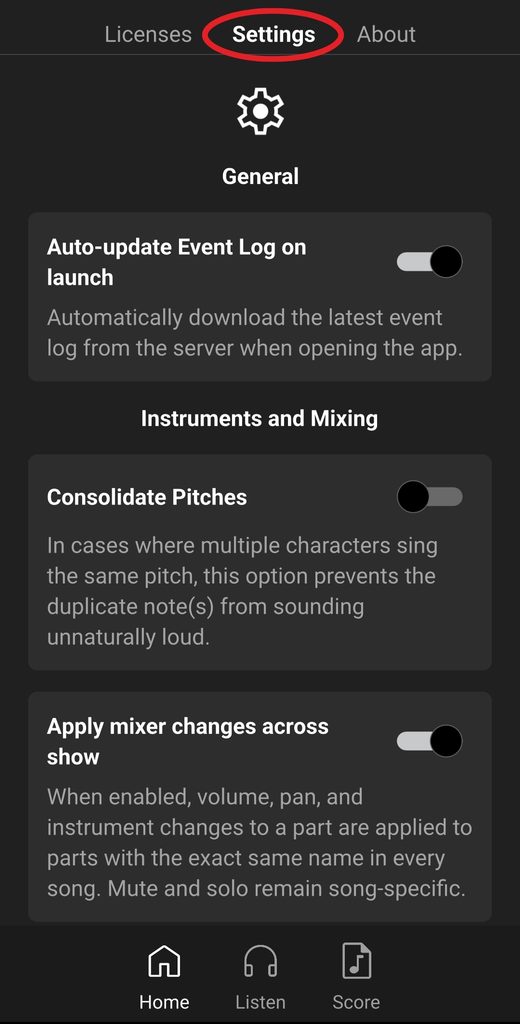
To change the settings, tap on the toggle:
- Enabled = toggle to the right
- Disabled = toggle to the left
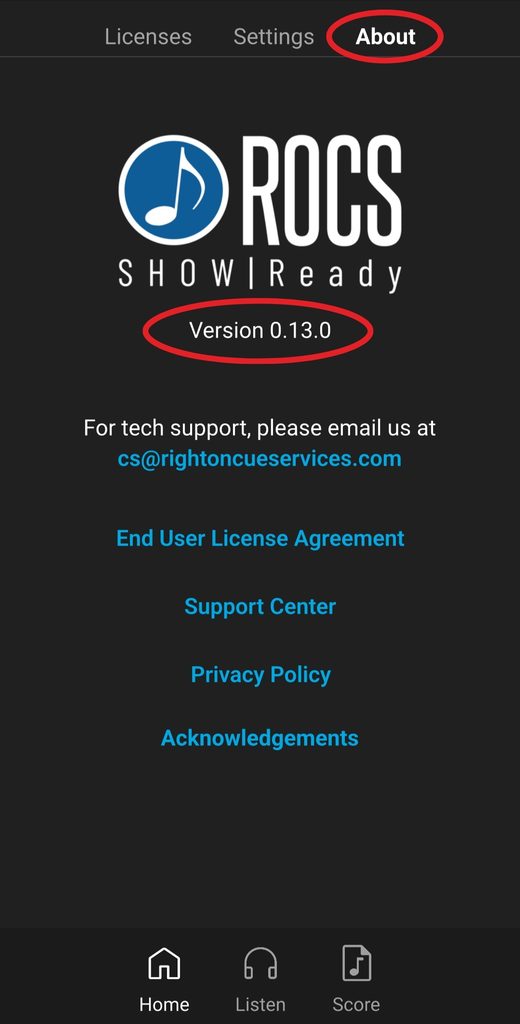
The About page includes the following info:
- Mobile app version
- Tech support email: cs@rightoncueservices.com
- End User License Agreement (EULA)
- Support Center
- Privacy Policy
- Acknowledgements
Frequently Asked Questions (FAQ)
Can I turn off the click track (metronome) in Show|Ready?
Although you can adjust the click track volume in the Mixer, it cannot be muted due to licensing restrictions. The click track ensures that Show|Ready is used only for rehearsal. Hence, the click track must remain enabled. However, you will find that the click track isn’t in our performance tool, Stage|Tracks.
Show|Ready had music that isn’t in Stage|Tracks. Where did it go?
Because Show|Ready is built for rehearsal purposes, we include the music for a cappella sections. However, in Stage|Tracks, this section of music is removed since it’s intended to be sung without accompaniment in the performance.
Do you provide rehearsal tracks with isolated vocal parts?
Yes, Show|Ready allows you to isolate and focus on specific vocal parts within a musical track. The Show|Ready mixer lets you adjust the volume of different elements so you can practice a particular vocal line independently.
Does Show|Ready have guide vocals?
We don’t have traditional guide vocals, meaning there aren’t singing voices in the tracks. However, the mixer within Show|Ready represents guide vocals as MIDI instruments, allowing cast members to practice their individual parts. This feature is not available in Stage|Tracks.
Can I make edits in Show|Ready on my iPad?
NOTE: Editing features are currently only available on the legacy Show|Ready app.
Yes, you can use your iPad with an editor code for the Show|Ready product. The access code unlocks the editor features that let you edit your show.
To access the admin features on your iPad for the Show|Ready product, log in using the viewer code. Once the product is downloaded, tap the “Unlock the Admin features” section to access the editor features.
How do you manage double casts?
If you have two different casts, you can manage them by doing the following:
- Make all general edits to cast A (vamps, cuts, tempo, transposition, etc.) and share the event log. Note the event log number.
- Have cast members download the latest log on their Show|Ready Mobile apps.
- Have cast members disable the “Auto-update Event Log on launch” in settings.
- Make all general edits to cast B (vamps, cuts, tempo, transposition, etc.) and share the event log. Note the event log number.
- Have cast members download the latest log on their Show|Ready Mobile apps.
- In the desktop app, load the corresponding event log for cast A or B as needed during rehearsal.
NOTE: Remember that whenever you make cast-specific edits, track the log for that cast. Make all cast-specific edits at once to avoid complications when switching between casts.

