
When you try to load your software, you might encounter a network error while activating Show|Ready or Stage|Tracks at your location (usually schools and universities). The issue is that the location’s firewall or closed ports are blocking the download.


Common error messages include, but are not limited to, the following:
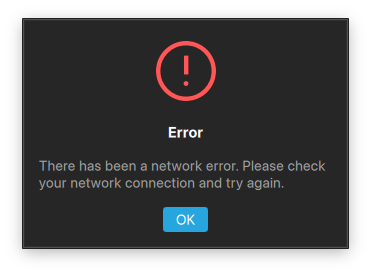
- There has been a network error
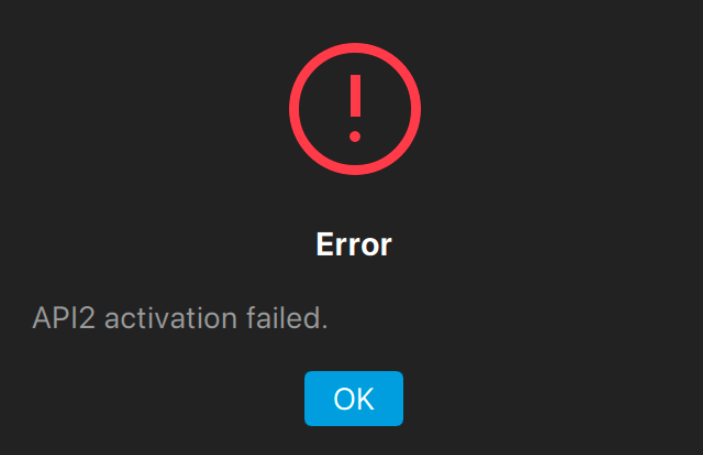
- API2 activation failed
If you are downloading an old version of Show|Ready or Stage|Tracks (previous to 2.0), do the following:
If you’re on the latest version of the software and you still receive an error message, try the following steps:
1. Check your internet connection
- Make sure your device is connected to the internet.
- If possible, try connecting to a different network, such as a mobile hotspot or home Wi-Fi.
- Try activating the software again.
NOTE: If activation works on a different network, the original network may be blocking the connection. Contact your network administrator or IT department.
2. Check your network settings
If you are using a school, business, or other managed network, ask your IT department to check whether the network is blocking ROCS.
The following domains may need to be whitelisted:
- rightoncueservices.com
- downloads.rocsapis.com
- api.rightoncueservices.com
- 54.190.169.149 (ipv4)
- 2600:1700:8c92:1010:a1ca:1d94:db32:713 (ipv6)
- (For proxy servers) rocs-music-data.s3.amazonaws.com
Your IT department should also check for:
- User permissions
- Firewall restrictions
- Proxy settings
- Web or content filters
- Antivirus or other security software
3. Restart your device
- Close Show|Ready or Stage|Tracks.
- Restart your device.
- Open the software and try activating again.
4. Check your device’s date and time
An incorrect date or time can prevent the software from connecting to our servers.
- Make sure your device is set to automatically update the date and time by syncing your universal clock.
- Restart the software and try again.
5. Mobile devices
If you are using the Show|Ready mobile app, try the following:
- Verify you are using the latest version of the app.
- Make sure the device has a stable internet connection.
- Try switching between Wi-Fi and a mobile hotspot.
- Close and reopen the app.
- Uninstall and reinstall the app.
- Restart the device and try again.
- If the app continues to close or crash after entering the code, contact ROCS Customer Support.
NOTE: Older devices don’t meet the minimum requirements for the current mobile apps.
6. Windows-specific users
If you are using Windows:
- Make sure you are using the latest version of the software.
- Make sure you have permission to install and run the software.
- If your computer is managed by a school or organization, contact your IT department for assistance. You may need to request admin rights for your user account.
- If the problem continues, you may need to install the Windows C++ Dynamic Link Libraries (DLL).
Still receiving a network error?
If none of the above works, please fill out the following form:
This information will help our Customer Support team (cs@rightoncueservices.com) determine whether the issue is related to the device, network, or software.

